Add a new device
Set up a new phone or another authentication method.

Technology Services
The Duo self-service portal lets you manage your Duo devices, add a new phone, reactivate Duo Mobile, and remove an old device.
cua.login.duosecurity.com/devicesSet up a new phone or another authentication method.
Reconnect the app if Duo Push is no longer working.
Choose the device or method you use most often.
Delete devices you no longer use.
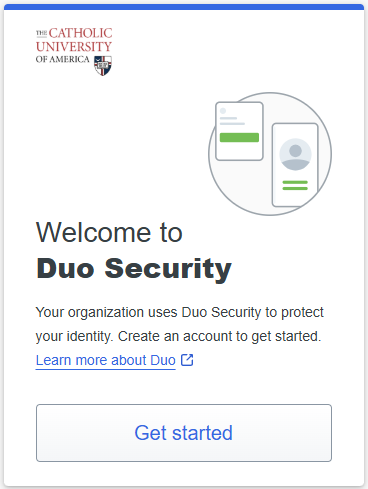
Go to the portal and sign in with your CUA credentials. If prompted, click Get started.
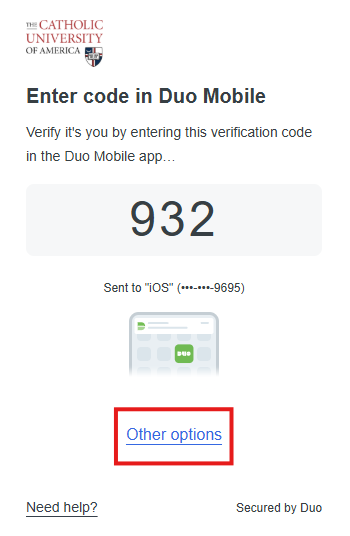
On the verification screen, click Other options.
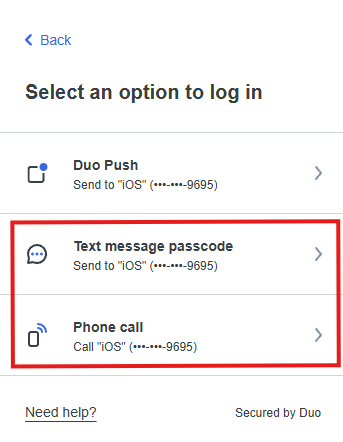
Select Text message passcode or Phone call to complete sign-in.
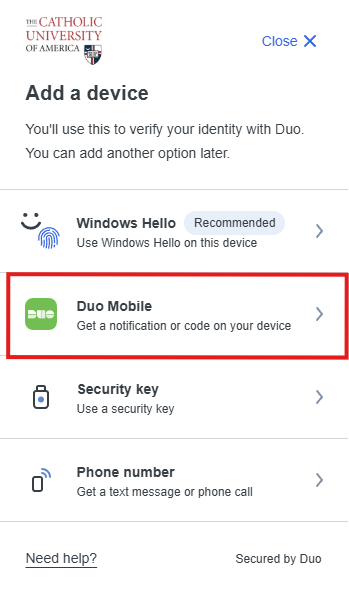
After signing in, select Duo Mobile under Add a device.
| Situation | What you may see | What to do |
|---|---|---|
| User not found in Duo | You may see invalid credentials. | Submit a Service Desk request. |
| User found but not enrolled | Duo will prompt you to enroll. | Complete Duo setup and register Duo Mobile. |
| User enrolled but not receiving Duo Push | Use Other options and choose text message or phone call. | Then add Duo Mobile to restore Duo Push. |
| User enrolled but no smartphone | You can still sign in with a text message or phone call. | If needed for Cardinal Students, add ,phone to the end of the password to request a phone call. |
| Phone lost, number changed, or old device unavailable | You may not be able to sign in to the portal. | Submit a Service Desk request. |
For the best experience, use Duo Mobile with Duo Push on your smartphone.
If you cannot sign in to the Duo self-service portal, or you no longer have access to your registered device, please contact Technology Services.
Tip: The standard Duo self-service portal is for managing an existing Duo account. If your phone is lost, your number changed, or you cannot complete Duo verification, Technology Services will need to help you regain access.