
Two-Factor Authentication at The Catholic University of America
Two-factor authentication, also called 2FA, helps protect Catholic University accounts by requiring a second step when signing in. This second step helps confirm that the person signing in is really the account owner.
Catholic University uses two different forms of two-factor authentication:
- Google 2-Step Verification for Cardinal Mail
- Duo two-factor authentication for several key University systems
Important: Google 2-Step Verification and Duo are separate systems. Both are required. Completing one does not complete the other.
Why Two-Factor Authentication Is Required
Passwords alone are not enough to protect University accounts. If a password is guessed, stolen, or exposed in a phishing message, two-factor authentication provides an additional layer of protection.
With two-factor authentication, a login usually requires something you know, such as your password, and something you have, such as your mobile phone or backup codes.
This helps protect University systems, personal information, academic records, financial records, and institutional data.
Google 2-Step Verification for Cardinal Mail
What Google 2-Step Verification Is Used For
Google 2-Step Verification is used to protect Cardinal Mail, the University’s Google email service.
Users are required to set up Google 2-Step Verification when they first activate and sign in to their Cardinal Mail account.
Google 2-Step Verification is separate from Duo. Setting up Google 2-Step Verification does not enroll you in Duo, and enrolling in Duo does not complete your Google 2-Step Verification requirement.
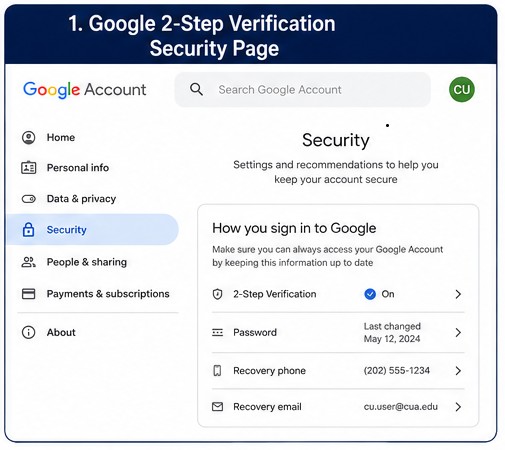
Required Setup for Cardinal Mail
When setting up your Cardinal Mail account for the first time, you must follow the prompts to complete Google 2-Step Verification.
The recommended method is to use a mobile phone. Depending on your setup, Google may allow you to verify your sign-in using a prompt, text message, phone call, authenticator app, or another approved method.
If you cannot use a mobile phone: You must generate and keep backup codes in a safe place. Backup codes allow you to access your account when your normal verification method is unavailable.
Backup Codes for Google 2-Step Verification
Backup codes are one-time-use codes that can be used to access your Cardinal Mail account if you cannot use your phone.
Backup codes are especially important if:
- You do not use a mobile phone
- Your phone is lost, damaged, replaced, or unavailable
- You are traveling and may not have access to your normal verification method
Each backup code can only be used once. After a code is used, it becomes inactive. You should store backup codes somewhere safe and private.
Security reminder: Do not share backup codes with anyone. Technology Services will never ask you to provide your backup codes.
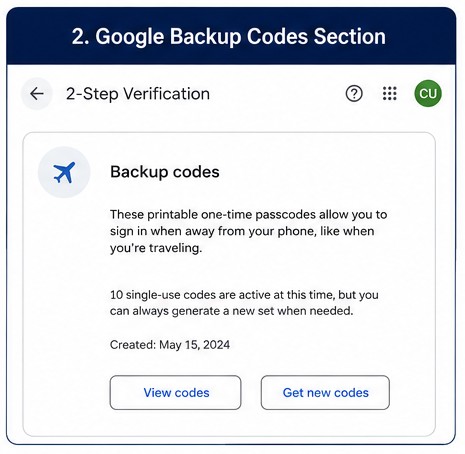
How to Generate Google Backup Codes
- Sign in to your Cardinal Mail account.
- Open your Google Account settings.
- Select Security.
- Under How you sign in to Google, select 2-Step Verification.
- Sign in again if prompted.
- Find the Backup codes section.
- Select the option to create or view backup codes.
- Download or print the codes.
- Store the codes in a safe place.
If you generate a new set of backup codes, the previous set will no longer work.
Duo Two-Factor Authentication
What Duo Is Used For
Duo is the University’s two-factor authentication service for several key systems.
Duo is used for access to:
- Cardinal Students
- Cardinal Faculty & Staff
- Cardinal Financial
- VPN, also called the Virtual Private Network
All faculty, staff, and students are enrolled in Duo two-factor authentication when joining the University.
Reminder: Duo is separate from Google 2-Step Verification. You must complete both requirements.
How Duo Works
Duo protects University systems by requiring a second step after you enter your username and password.
The most common method is a Duo Push notification.
A Duo Push notification is sent to the Duo Mobile app on your phone. When you receive the notification, review the login request and approve it only if you are the person trying to sign in.
Never approve an unexpected Duo Push. If you receive a Duo Push notification that you did not request, deny the request and report the activity to Technology Services.
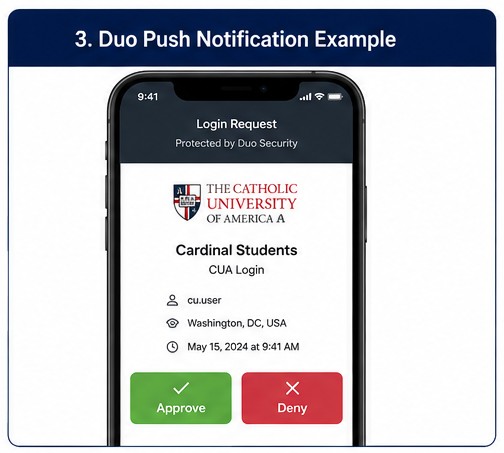
How to Sign In Using Duo Push
- Go to the University system you are trying to access.
- Enter your Catholic University username and password.
- When prompted by Duo, choose the Duo Push option.
- Open the Duo Mobile app on your phone if the notification does not appear automatically.
- Review the request.
- Approve the request only if you are actively trying to sign in.
You must have already enrolled your device in Duo before you can use Duo Push.
Enrolling in Duo
Enrolling from the Initial Enrollment Email
New faculty, staff, and students will receive a Duo enrollment email as part of the account setup process.
To enroll in Duo:
- Open the Duo enrollment email sent to your Catholic University email address.
- Select the enrollment link in the message.
- Follow the on-screen prompts.
- Install the Duo Mobile app on your phone when prompted.
- Add your Catholic University Duo account to the Duo Mobile app.
- Complete the activation process.
- Confirm that Duo Mobile is ready to receive push notifications.
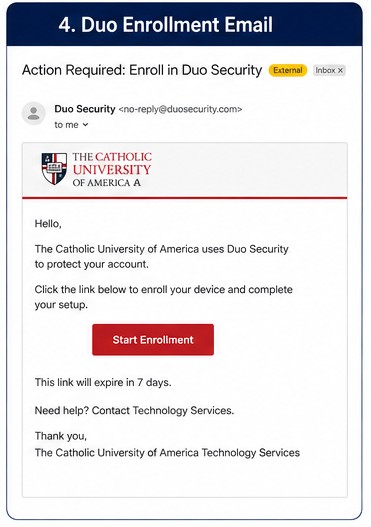
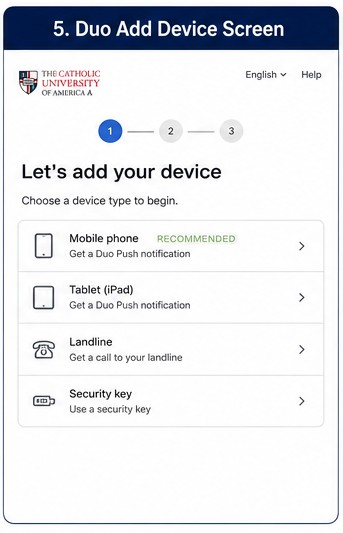
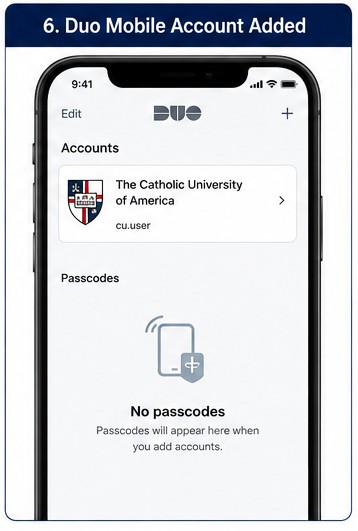
Once enrollment is complete, you will be able to use Duo Push when accessing Duo-protected University systems.
Reactivating Duo
You may need a new Duo activation link if:
- You buy a new phone
- You replace your phone
- You reset your phone
- You delete the Duo Mobile app
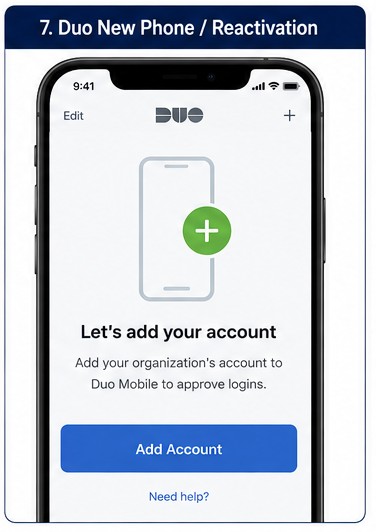
- Duo Mobile no longer shows your Catholic University account
- Duo Push notifications are no longer working
Getting a new phone? Duo may not automatically transfer to your new device. If Duo Push stops working, contact Technology Services and request a new Duo activation link.
Technology Services will send a new Duo activation link to your Catholic University email address. You must use that link to reconnect your phone to your Catholic University Duo account.
Google 2-Step Verification vs. Duo
| Service | Used For | Required? | Typical Method |
|---|---|---|---|
| Google 2-Step Verification | Cardinal Mail | Yes | Mobile phone or backup codes |
| Duo | Cardinal Students, Cardinal Faculty & Staff, Cardinal Financial, VPN | Yes | Duo Push through the Duo Mobile app |
Completing one does not complete the other. Google 2-Step Verification and Duo must both be set up.
When to Contact Technology Services
Contact Technology Services if:
- You cannot access Cardinal Mail because of Google 2-Step Verification
- You cannot access your Google backup codes
- You need help setting up Duo
- You need a new Duo activation link
- You bought or replaced your phone
- Duo Push is not appearing on your phone
- You receive Duo Push notifications you did not request
Technology Services
Email: [email protected]
Phone: 202-319-4357
Security Reminders
- Never approve a Duo Push notification unless you are actively signing in.
- Never share your password, verification codes, backup codes, or Duo approval requests.
- Keep backup codes in a private and secure location.
- Contact Technology Services right away if you think your account may be compromised.